Source-checked iOS guide
MovieBox for iOS: Current iPhone and iPad Methods for 2026
MovieBox for iOS does not refer to one clearly identical product across every website because several App Store listings and third-party services use similar names.
Movie Box for iPhone should be identified by its developer, App Store description, supported devices, privacy information, and actual feature list before it is installed.
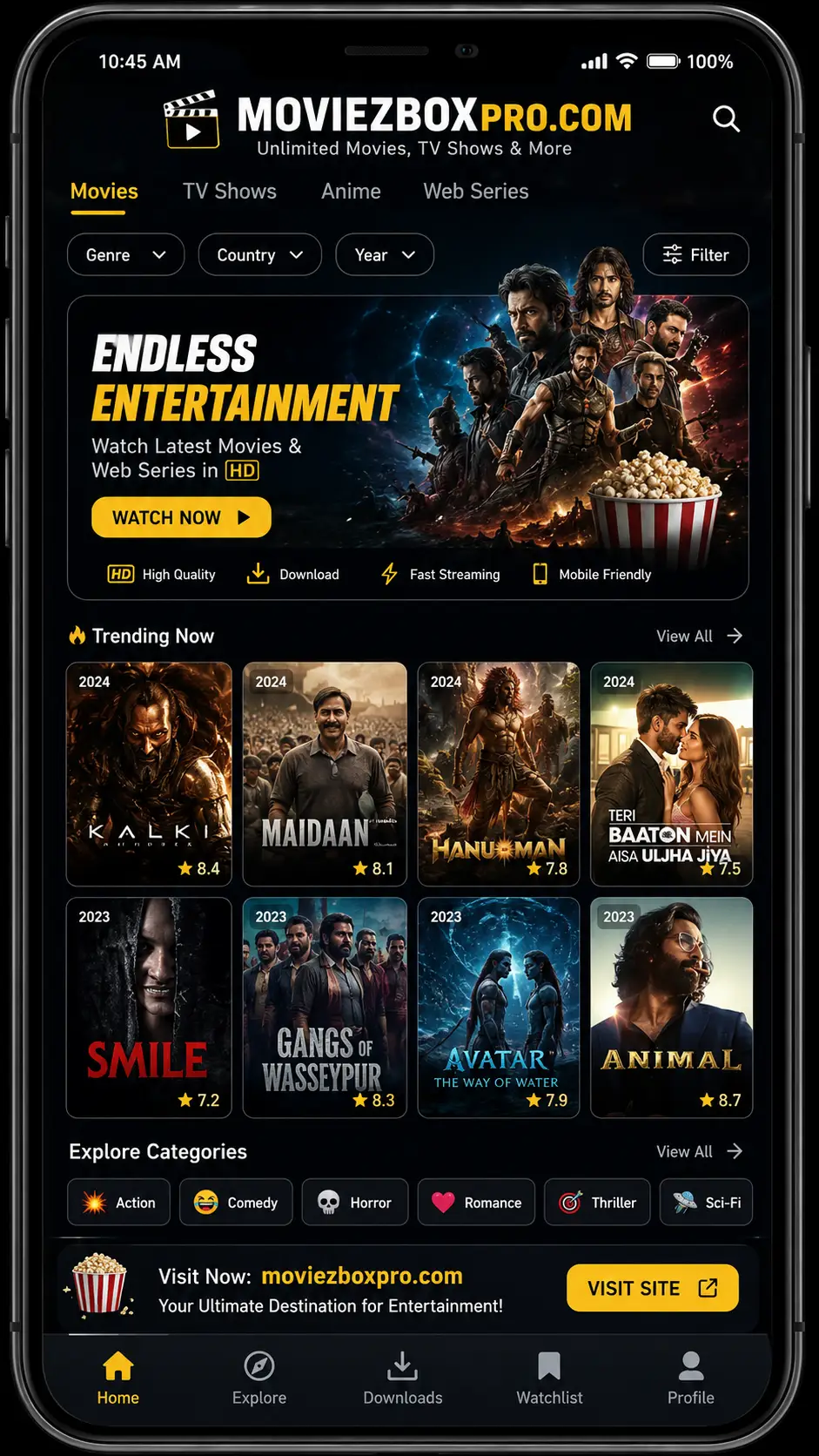
Identify the product
Similar names can lead to different iOS applications.
A current App Store listing named MovieBox Pro: Movie & TV Show describes a movie-discovery utility with title information, trailers, watchlists, quizzes, and puzzles.
That App Store listing identifies Taha Mirza as the developer and lists the app as free with in-app purchases for iPhone and iPad.
A separate App Store product named Movies Box describes discovery, trailers, curated lists, a personal movie database, and playback of videos that the user adds through Dropbox.
The Movies Box listing specifically explains that it is not a full-length movie streaming service inside the app.
Third-party page coverage
What MovieBox iOS websites commonly claim.
Prominent third-party pages repeatedly describe streaming, subtitles, quality controls, offline viewing, cross-device history, and installation outside the App Store, but those pages do not all describe the same application or provide the same instructions.
Streaming and quality
Several sites claim HD or SD playback, large movie and television libraries, subtitle support, and selectable quality for slower connections.
Offline and account features
Some pages describe offline viewing, watch-history synchronization, multiple-device access, and premium or VIP account options.
Installation outside the App Store
Some guides instruct visitors to use Safari, configuration profiles, device-management trust settings, or third-party app stores.
Apple-supported choices
Use the method that matches the available iOS product.
App Store listing
Use the App Store when the exact application and developer can be matched to the product a visitor intends to use.
TestFlight beta
Use TestFlight only when the developer provides a valid beta invitation or public testing link that is still accepting testers.
Safari web app
Use Safari when the service offers a browser version, then add the site to the Home Screen for app-like access when needed.
App Store method
Review the full product page before installing.
Search the exact title
Enter the full app name rather than relying on a generic MovieBox search result.
Match the developer
Confirm that the publisher shown on the App Store page matches the product described by the website or guide.
Read the feature description
Determine whether the listing offers discovery, trailers, watchlists, imported personal videos, streaming, or another function.
Review privacy information
Check the App Privacy section and any tracking request before accepting access to device information.
Check purchases and subscriptions
Read the in-app purchase details and renewal terms before confirming a paid option.
TestFlight method
Join a beta only through a valid invitation.
Install Apple TestFlight
TestFlight is Apple’s beta-distribution system for developers who want invited users to test an app before public release.
Open the invitation or public link
The invitation should identify the beta and open through the TestFlight application.
Read the beta information
Review the testing notes, developer details, build information, and feedback request before installation.
Understand tester limits
A public link can stop working when the developer disables it or the beta reaches its tester limit.
Safari method
Turn a supported website into a Home Screen web app.
Open the website in Safari
Confirm the domain before entering an account or allowing browser permissions.
Test the browser experience
Check search, navigation, playback, subtitles, full-screen mode, and account access before creating a shortcut.
Open Safari’s Share menu
Use the Share control after the correct page is open.
Select Add to Home Screen
Confirm the name and icon, then add the web app or shortcut to the iPhone Home Screen.
Feature comparison
Confirm which functions belong to the selected product.
| Movie discovery | Current App Store listings describe browsing films and shows, viewing details, ratings, casts, summaries, and curated lists. |
|---|---|
| Trailers | Multiple App Store listings describe trailer or related-video playback. |
| Watchlist | Current listings describe saving titles or organizing a personal movie database. |
| Full-length streaming | This must be checked product by product because one App Store listing says it is not a full movie streaming service, while third-party sites claim full streaming. |
| Offline viewing | Some third-party pages claim offline downloads, while the Movies Box listing describes playing the user’s own videos imported through Dropbox. |
| Subtitles and quality | Third-party pages commonly describe subtitles and HD or SD controls, but availability should be confirmed inside the selected app or service. |
| Quizzes and puzzles | The current MovieBox Pro App Store listing includes movie-related quizzes and puzzles as part of its feature set. |
TV playback
Use AirPlay when the app or video supports it.
Use the same Wi-Fi network
Connect the iPhone or iPad and the Apple TV, AirPlay-compatible smart TV, or Mac to the same Wi-Fi network.
Start the video
Open the video and look for the AirPlay control in the app or player.
Select the destination
Choose the Apple TV, compatible smart TV, or Mac from the device list.
Use Screen Mirroring if needed
Open Control Center and choose Screen Mirroring when direct AirPlay video is unavailable and mirroring is permitted.
Privacy checks
Review permissions and network activity after installation.
Apple’s App Store product pages include privacy information that summarizes how the developer says data may be collected or used.
App Privacy Report can show how often installed apps use granted permissions and which network domains they contact.
Tracking permission can be changed later in Privacy & Security settings when an app requests activity tracking.
Local Network access should be granted only when a feature such as casting or communication with a nearby device requires it.
Storage and updates
Manage app size, cache, imported files, and updates.
iPhone Storage settings show the space used by an application and can provide options to offload or delete it.
Offloading removes the app while keeping its documents and data for a later reinstall.
App Store apps should normally be updated through the App Store, while TestFlight beta updates appear through TestFlight.
Safari web apps update from the website, although cached data can need to be refreshed when a page behaves incorrectly.
Read the MovieBox update guide →Common iOS problems
Fix listing, beta, browser, playback, and AirPlay issues.
The expected app is not in the App Store
Check the exact name, developer, region, supported device, and whether the listing has been removed or renamed.
The TestFlight link is full or expired
The developer may have reached the tester limit, disabled the public link, or replaced the available build.
The Safari web app will not open
Confirm the domain, check the connection, reload the page, and review content blockers or cleared website data.
Playback keeps buffering
Lower the available quality, test Wi-Fi, stop background transfers, and confirm that the selected source is working.
Subtitles are unavailable
Check the player menu, reload the title, select another subtitle track, or confirm that captions exist for that source.
AirPlay cannot find the TV
Put both devices on the same Wi-Fi network, install updates, restart them, and check AirPlay support.
Other platforms
Continue with the guide for another device.
MovieBox for Android
Learn how Android APK installation differs from App Store, TestFlight, and Safari access.
Open Android guide →MovieBox for PC
Compare Windows browser use, native desktop apps, and Android emulator methods.
Open PC guide →MovieBox for TV
Review AirPlay, screen mirroring, Android TV, casting, and television setup.
Open TV guide →Product comparison
Compare the actual listing instead of the shared name.
An App Store discovery utility, a personal video player, a browser service, and a third-party streaming app can all appear under similar MovieBox wording.
Compare the developer, privacy label, full-length playback support, imported media, trailers, watchlist, offline behavior, AirPlay, purchases, and update method.
Claims such as official, unlimited, verified, jailbreak-free, or completely safe should be supported by clear evidence before they appear in page titles or descriptions.
iOS questions
MovieBox for iPhone and iPad FAQs.
Is every MovieBox iOS result the same app?
No. Current results include differently named and differently published App Store apps, third-party streaming pages, browser services, and beta-installation guides.
What does the current MovieBox Pro App Store listing offer?
Its listing describes movie and television discovery, title details, trailers, watchlists, quizzes, and puzzles.
Does every App Store result stream full movies?
No. One current Movies Box listing explicitly says it is not a full movie streaming service inside the app.
Can an Android APK install on an iPhone?
No. An APK is an Android application package and is not an iOS application format.
What is TestFlight used for?
TestFlight allows developers to distribute beta builds to invited testers or users who join through an active public testing link.
Can a MovieBox website be added to the Home Screen?
A compatible website can be opened in Safari and added through the Share menu using Add to Home Screen.
Can an iPhone send video to a television?
A supported app or video can use AirPlay or screen mirroring with an Apple TV, AirPlay-compatible smart TV, or Mac.
How can app privacy be reviewed?
Check the App Store privacy information, iPhone Privacy & Security settings, tracking permission, and App Privacy Report.